
19 oct. 2026
Desktop 1.4.3 adds full menus with shortcuts, a Touch ID lock on Mac, open at login, a badge for what's due and a Check for Updates menu item.
Planzer now has proper app menus. Press ⌘N (Ctrl+N on Windows and Linux) for a new task and ⌘, for Settings, and jump between Today, Inbox, Calendar, Projects, Goals, Analytics and Routines with ⌘1 to ⌘7 from the Go menu. Help Center, What's New and Report a Problem are in the Help menu.
The two global shortcuts, for the timer and for a new task, can now be changed or turned off in Settings → Account.
Turn on Lock Planzer in Settings → Account and the app locks when you leave it. On a Mac with Touch ID, unlock it with your fingerprint. On Windows and Linux, you sign in again to unlock it.
Planzer can open when you log in to your computer. On Mac and Linux, the app icon shows how many tasks are overdue or due today. Both are in Settings → Account.
Use Check for Updates in the menu to look for a new version right away. While an update downloads, a small banner shows the progress. When it's ready, you can restart or keep working and it installs when you quit.
Links starting with planzer:// now open the app: planzer://today, a task with planzer://task/ and its number, or a new task with planzer://new?title=.
The desktop app updates itself. You can also download 1.4.3 for Mac, Windows and Linux from planzer.io/download.
19 oct. 2026
Desktop 1.4.2 signs you in with Microsoft and Google in your browser, fixes Microsoft sign-in on Windows and brings back voice, reminders and the timer.
In the desktop app, Google and Outlook on the sign-in screen now open your default browser, where you're often already signed in to your work account. When you're done, your browser asks to open Planzer. Allow it, and the app finishes signing you in.
It's also more secure: the code that passes through the browser is useless without a secret that only the app holds.
Microsoft sign-in on Windows. The Windows app showed an error that the app "undefined" couldn't be found in your Microsoft 365 tenant. That's fixed.
Desktop features in 1.4.1. Voice to tasks on your computer, local reminders, the tray and menu bar timer and notifications had stopped working in 1.4.1. They work again.
When you dictate tasks, a sound meter shows that Planzer is hearing you. Your text appears a few seconds after you click Stop.
The desktop app updates itself the next time you restart it. You can also download 1.4.2 for Mac, Windows and Linux from planzer.io/download.
19 oct. 2026
Connect Planzer to Claude, ChatGPT, Codex, Cursor and other AI assistants with MCP, and let them plan your day around your meetings. Part of Pro.
Your AI assistant can now work with your real plan in Planzer. Connect Claude, ChatGPT, Claude Code, Codex, Cursor or any other assistant that supports MCP (Model Context Protocol), and ask it things like:
"Plan my day around my meetings and give each task a time slot."
"Add the action items from this email as tasks for tomorrow."
"What's still open this week? Move what I won't get to into next week."
"Start a timer on the design review."
Your assistant can see your tasks, projects, tags and calendar events. It can create, change, complete and delete tasks, schedule tasks in your calendar, and start or stop timers. Everything happens in your time zone, and it shows up on all your devices right away.
Go to Settings → Integrations → AI assistants (MCP), pick your assistant and copy the prompt or the server URL. You sign in to Planzer in your browser and click Allow, so no password or key goes into the chat.
Each connected assistant gets its own key under Settings → Integrations → API keys, and you can disconnect it there with one click.
Connecting AI assistants is part of Planzer Pro. Read the setup guide or see planzer.io/mcp.
13 oct. 2026
This update gives repeating tasks and the focus timer more control, makes Planzer quicker to drive from the keyboard, and lets you take your data with you.
Choose Repeat → Custom… to repeat a task every few days, weeks or months, on the weekdays you pick, and stop on a date or after a number of times. For example: every 2 weeks on Monday and Thursday, 6 times.
J and K move between tasks, Enter or E opens one and X completes or reopens it.
T jumps to today and / opens search.
G then T, I, C, A, R or P takes you to Today, Inbox, Calendar, Analytics, Routines or Projects.
In the focus timer, Shift S stops the session and Shift D finishes it.
Press ? to see them all.
Moved a task to the wrong day or completed the wrong one? Undo now appears after moving or completing tasks, after bulk changes (including the new bulk Complete), and when AI quick-add renames or schedules a task.
Set your own focus length, short and long breaks, how many sessions come before a long break, and whether the next break or session starts on its own. You’ll find it under Timer settings in the focus timer and in Account settings.
Routines moved out of Templates into their own page. Open it from the user menu, with G then R, or with Manage routines in the Add Task menu.
Download everything in your account as a JSON file, or your tasks as a CSV, from Account settings → Export your data.
A getting-started checklist for new accounts in the inbox sidebar.
Weekly planning on Monday mornings and the Friday review open on their own again.
What you type in Wind down the day and the weekly review is kept if you close the window.
Planzer asks before deleting a whole repeating series, a tag, a calendar account or an integration, and before changing or canceling your plan.
Outlook calendars now show all your events in busy weeks, each calendar in its own color, and calendars load faster.
Stronger protection for sign-in, password changes and API keys.
Desktop app 1.4.1 opens links from your tasks safely in your browser.
Better keyboard and screen reader support, and dark mode fixes.
2 oct. 2026
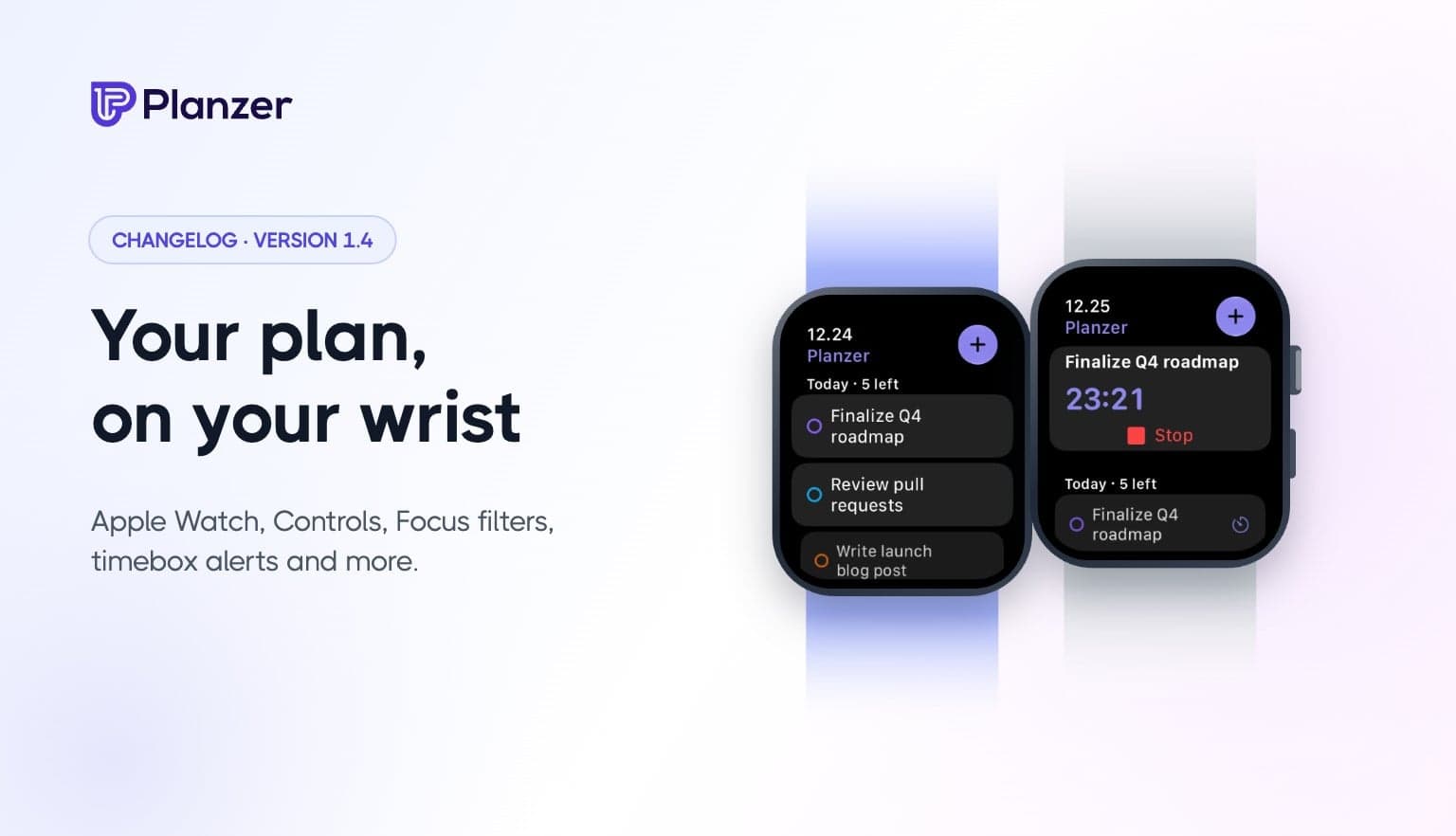
Planzer 1.4 brings Planzer to your wrist, and gives you more ways to capture and focus on your phone.
See today’s tasks and your running timer on Apple Watch. Start, stop and finish tasks with a tap, add new ones by voice, and keep your progress on your watch face with complications.
Timebox alerts (phone apps): when a planned task starts, Planzer notifies you, and you can start the timer right from the notification.
Focus sessions show a live countdown on your iPhone Lock Screen and in the Dynamic Island.
Add tasks from anywhere: Home Screen and Lock Screen widgets, Control Center, the Action button, or by sharing from any app.
Search your tasks from iPhone Search (Spotlight).
Focus filters: show only the project that matters while a Focus is on.
Reminders that get through Focus modes (Time Sensitive).
Dark and tinted app icons on iPhone; themed icons and wallpaper colors on Android, including a new Wallpaper theme.
Built for iPad with a keyboard: hold ⌘ to see every shortcut, and drag text and links from other apps straight into your inbox.
Drag to capture: drag a link or text from another app or window onto your inbox to save it as a task, on the web and desktop too.
1 oct. 2026
Three more updates for the iPhone and Android apps: act on reminders without opening Planzer, use Planzer with Siri, and get fixes faster.
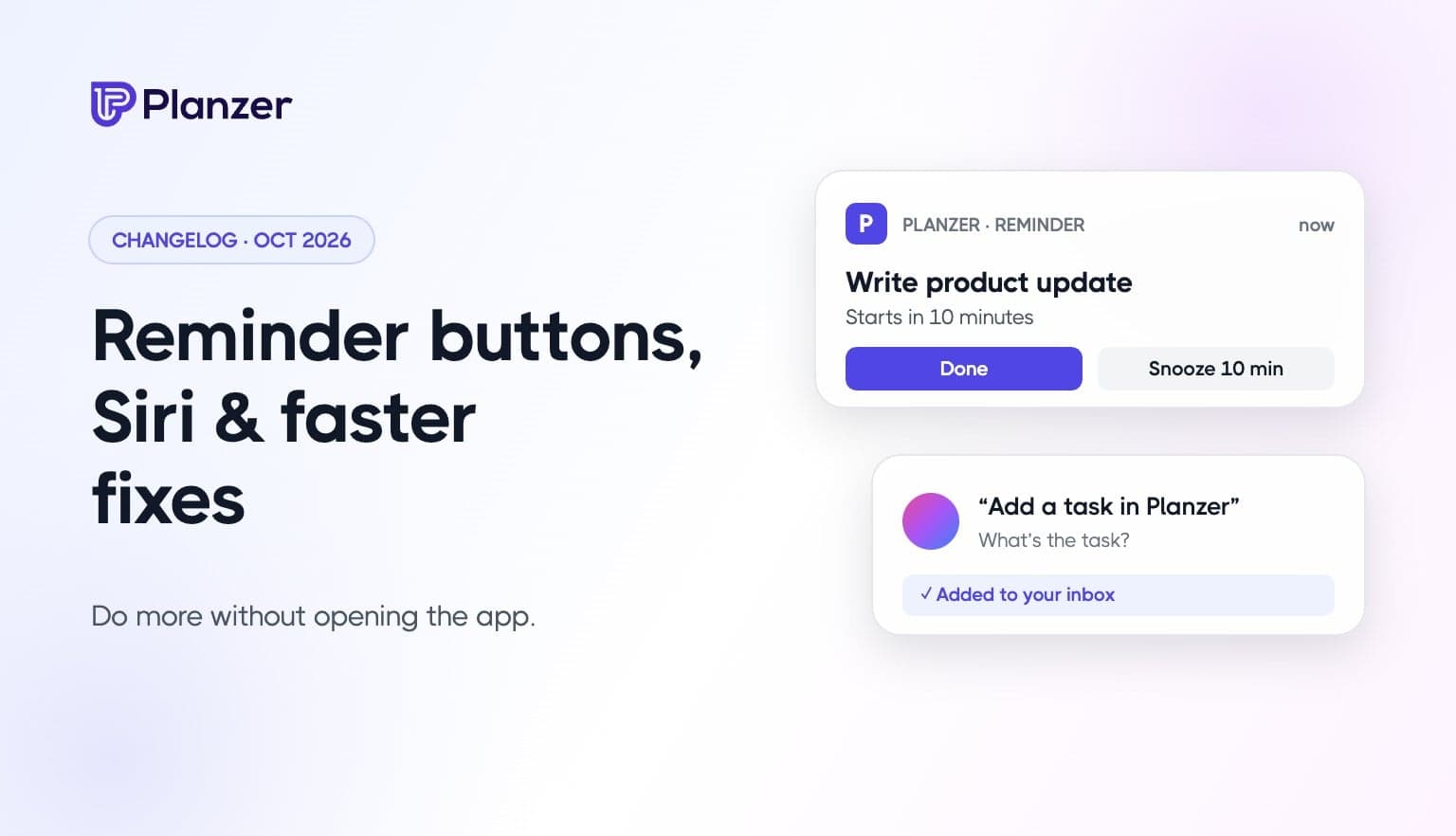
Reminder notifications now have two buttons on iPhone and Android: Done completes the task, and Snooze 10 min reminds you again in 10 minutes. No need to open the app.
Say “Add a task in Planzer” and Siri asks what the task is and saves it to your inbox or today’s plan. You can also say “Start my next task in Planzer”, “Stop the Planzer timer” or “What’s left today in Planzer”. All four are in the Shortcuts app too, ready for your own shortcuts, automations and the Action button.
Most fixes and improvements now reach the iPhone and Android apps straight away, without waiting for an App Store or Google Play update.
1 oct. 2026
Make Planzer yours with themes, and get more done from your phone with Share to Planzer, quick actions and a count of today’s tasks on the app icon.
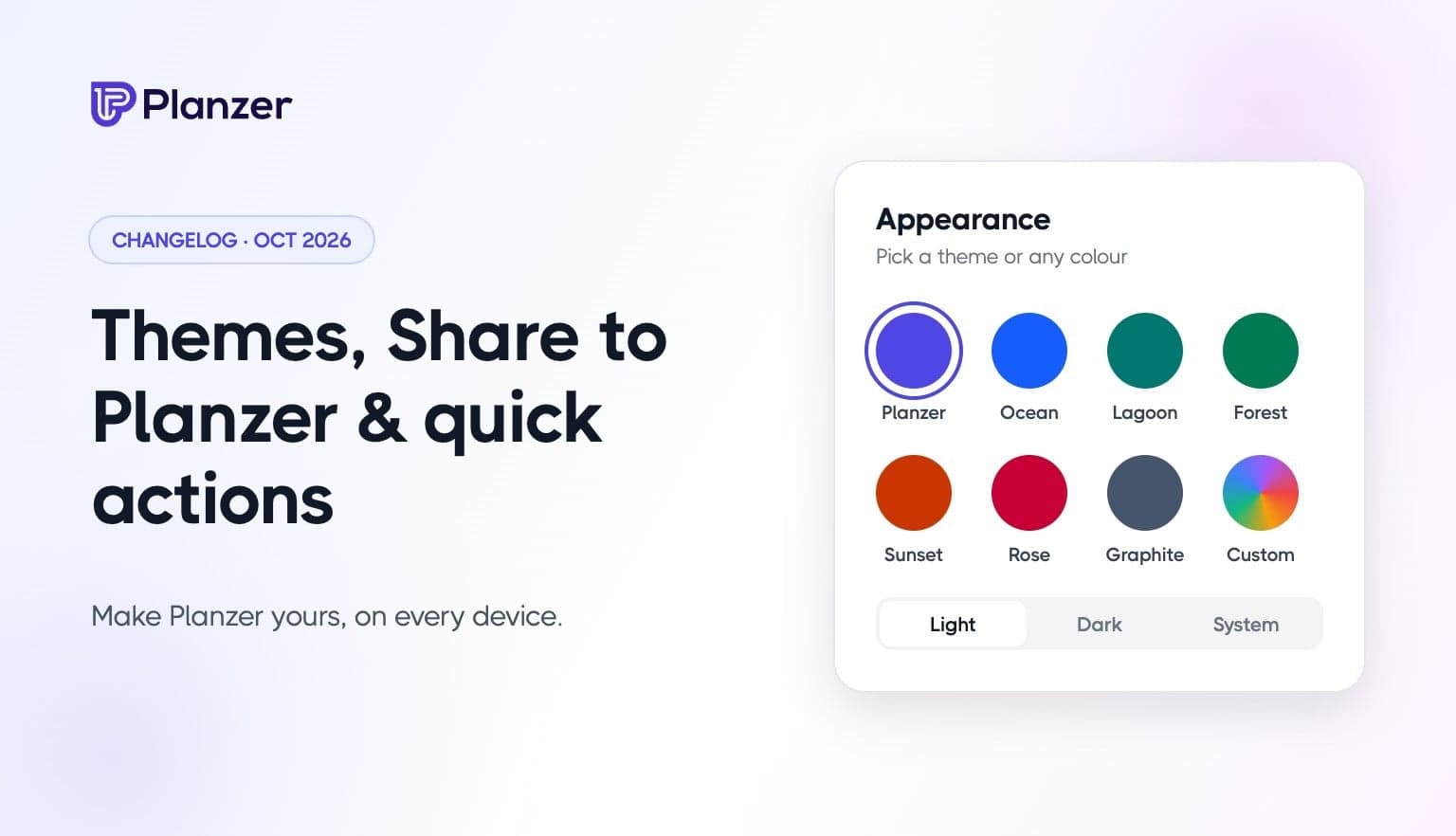
Pick one of seven themes (Planzer, Ocean, Lagoon, Forest, Sunset, Rose or Graphite) or choose any color you like, and Planzer builds a full theme from it. Buttons, highlights, today’s column and the calendar all follow your color, in both light and dark mode.
Your theme follows your account, so it’s the same on the web, on your desktop and on your phone, and your widgets and the desktop mini window use it too. Find it under Account settings → Appearance, where you can now also switch between light, dark and system mode.
Share to Planzer. Share a link or some text from Safari, Mail or any other app and it lands in your inbox. On iPhone it saves straight from the share sheet without opening Planzer, and a shared link gets the page’s title.
Quick actions. Press and hold the Planzer icon to add a task, open your inbox, or start the timer on your next task (or stop it).
Today’s count on the app icon (iPhone). See how many tasks are left today at a glance. It updates even when Planzer is closed.
Your text size (iPhone). Planzer now follows the text size you’ve set on your iPhone, including the larger accessibility sizes.
More private. On iPhone, your tasks are hidden in the app switcher. Your sign-in is now kept in the iPhone Keychain and Android’s encrypted storage.
Update the app from the App Store or Google Play to get the new mobile features. Themes are available everywhere now.
30 sept. 2026
Two big updates in one: Apple iCloud Calendar and a brand-new calendar, a day that tells you when you’ll be done, and live sync that keeps every device in step — even offline.
Apple iCloud Calendar. Connect iCloud with an app-specific password, see your events in Planzer, and plan tasks straight onto your iCloud calendars.
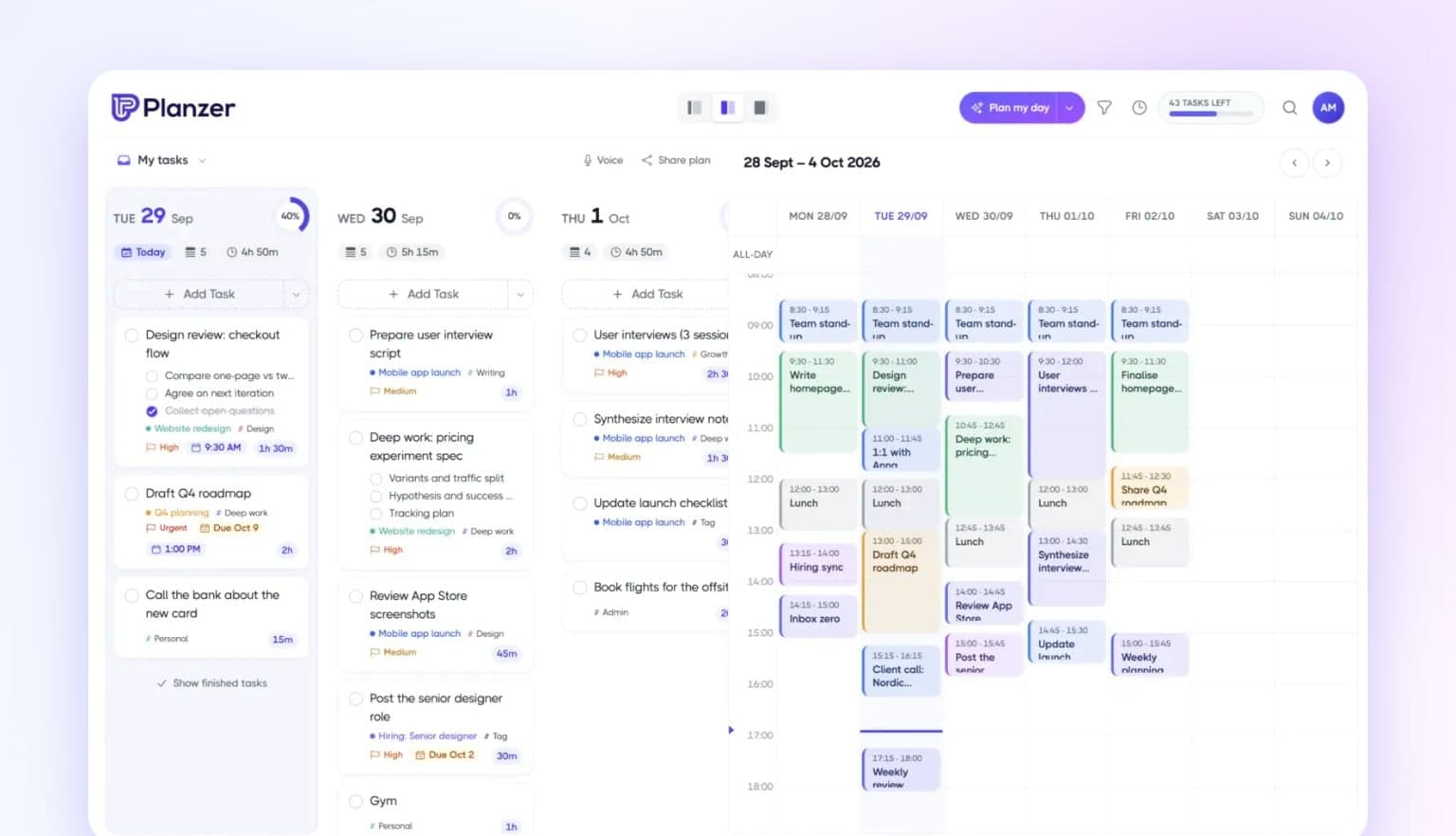
A brand-new calendar. Smoother drag and drop, resizable events, a live “now” line, and swipe between days on your phone.
Drag any task onto the calendar. Grab the whole card — no drag handle needed.
Estimates follow your calendar. Stretch or shrink a task on the calendar and its estimate updates. Prefer not? Turn it off in Calendar settings.
Know when you’ll be done. Today’s tasks show when each one starts and ends as you work down the list, plus a finish time that turns amber if you’ll run past your shutdown time. Meetings are worked around.
Overtime. The focus timer keeps counting past 00:00, and task timers show how far you’ve gone past the estimate.
Sounds. Timer alarms, a gentle chime every 5 to 30 minutes, and background sound: brown noise, rain or waves. All optional, in your account settings under Sounds.
Routines. Save a set of tasks, like your morning routine, and add it to any day in one click from the Add Task menu. You can even save today’s tasks as a routine.
Live sync. Finish a task on the web and it’s done on your phone and desktop within a second — no restart needed. Goals, routines, templates, saved filters and settings sync too.
Your calendar, instantly. Changes in Google Calendar or Outlook show up in Planzer within seconds; iCloud within a couple of minutes.
Work offline. No connection? Keep planning. Changes are saved on your device and sync when you’re back online.
No more lost edits. Change the same task on two devices and nothing is silently overwritten — you choose which version to keep.
A faster inbox. Older finished tasks load when you ask for them, so your inbox opens quickly.
Cleaner, consistent menus. Snooze options show the date they move the task to.
“Move to inbox” puts the task at the top of your inbox.
“Remind me later” on Plan my day waits 3 hours before asking again.
Missed occurrences of a repeating task no longer pile up on today, and Plan my day only carries over one-off tasks.
Day columns line up evenly, and today’s start and finish times update exactly on the minute.
In the desktop app, links open in your default browser.
A lighter app, and stronger sign-in and account data protection.
“Today” moves to the new day at midnight, even if Planzer stays open.
Reordering tasks puts them exactly where you drop them, and “Hide finished tasks” works again.
Tasks from Asana and other integrations no longer show up twice, and repeating tasks no longer appear several times on the same day.
Calendar events no longer appear twice after moving between weeks, and on phones the calendar opens at the current time.
Changes from another device show without restarting the app, and a brief server problem can no longer make your tasks disappear.
Analytics loads again, weeks follow your time zone, and completion stats are accurate.
Deadlines and planned times show correctly in every time zone, and tasks from a template keep their tag.
Dropdowns in the task window are no longer cut off, the account menu closes when you pick a page, and “Create your first tag” works.
Signing up with Outlook using an existing email signs you in, and password reset links expire at the right time.